 Autism Agent
Autism Agent tutorial
Scroll the guide — the live preview follows along. Build a board from your own photos: camera or library, one card at a time.
Pick a name and avatar — starter cards load automatically.
1. Install and first-time setup
-
Download the app
Install Autism Agent from the App Store on iPhone or iPad. Core AAC features are free — no account required to start.
-
Complete agent setup
On first launch, pick an agent name and emoji avatar. This is the friendly identity on the Speak screen — it helps some kids feel ownership of the board. You can change the emoji later by tapping it on Speak (when not in student-safe mode).
-
Starter cards load automatically — then make it yours
128 common words with pictograms appear right away (Yes, No, More, Help, food, feelings, places, and more). That's enough to start speaking today. Tap the camera on Speak or open Admin to add cards from your camera or photo library — Grandpa's face, their favorite snack, the park — and replace starter cards with real pictures as you go.
-
Join a family board (optional)
Every device uses the same quick setup. When a caregiver sends a share invite link, open it while signed into the family member's Apple ID — that device switches to the read-only shared board automatically. No separate setup path required.
2. Speak mode — say one word
The main screen is calm and distraction-free. This is what the person communicating uses day to day.
-
Tap a picture
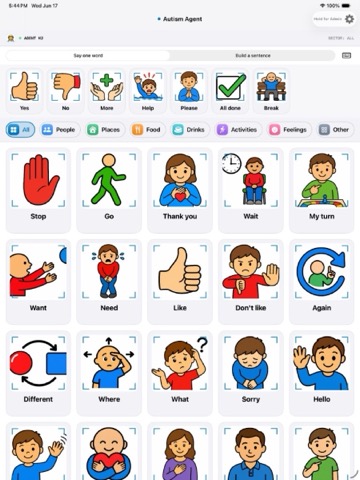
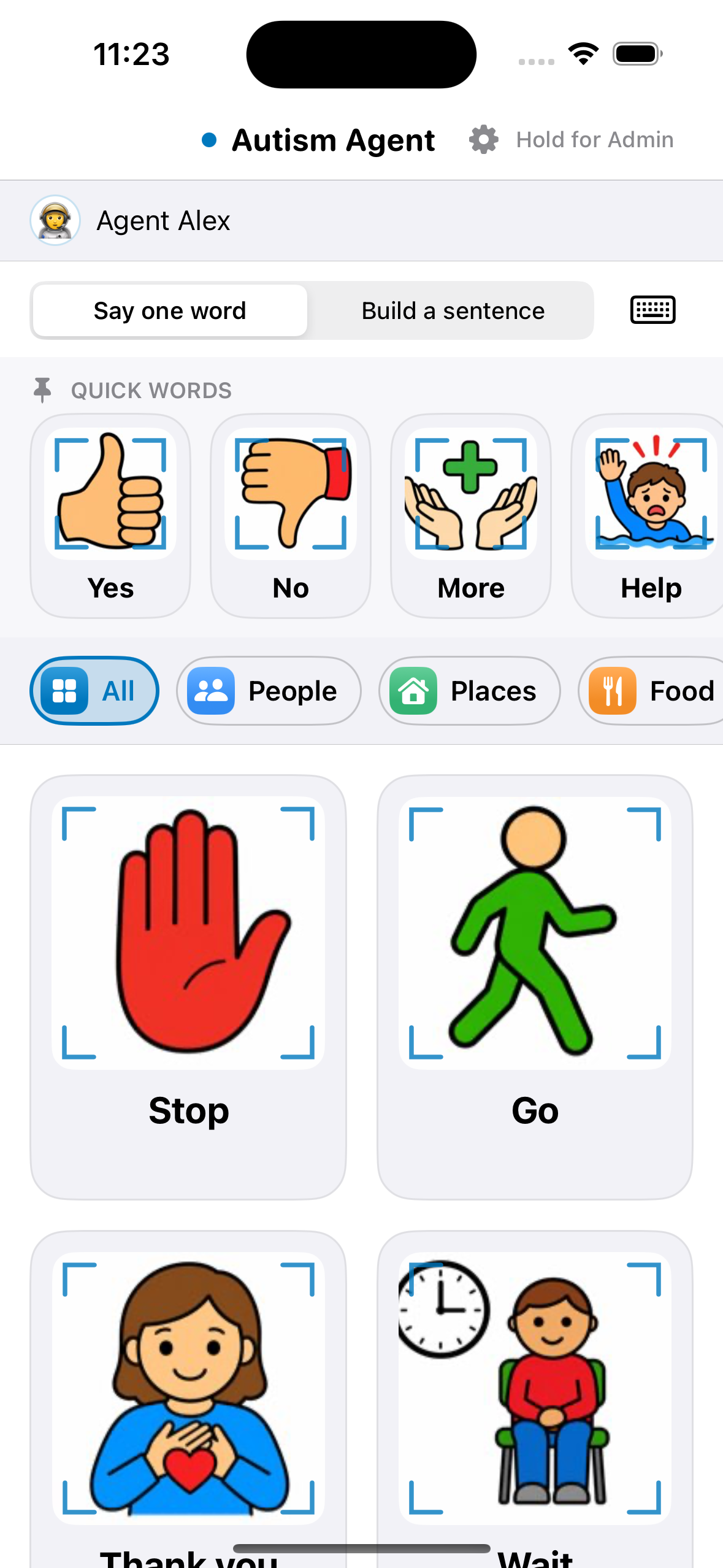
Each card speaks its label instantly. Great for single words: Yes, No, More, Help, or any custom photo you add.
-
Filter by category
Scroll the category chips above the grid — People, Food, Feelings, Places, and others. Tap All to see every card again.
-
Partner line (optional)
When enabled in Control Panel, the last spoken word or sentence appears under the agent bar — even after you tap Speak. Tap it to hear it again or jump into editing.
-
Long-press a card (caregiver devices)
Long-press any card for Edit card, New card, or Add to Quick Words — a fast alternative to dragging cards into the pinned row.
3. Quick Words
The row above the grid keeps your most-used words one tap away.
-
Default pins
Yes, No, More, Help, and other core words pin automatically the first time cards load.
-
Pin a card
On the caregiver device, drag any card up into the Quick Words row, or long-press a card and choose Add to Quick Words.
-
Unpin a card
Drag a pinned card back down onto the grid, or long-press it and choose Remove from Quick Words.
-
Empty row stays visible
If you clear every pin, the row remains so you can always drag new words in — it never disappears.
4. Build a sentence
Combine words into full messages before speaking.
-
Switch mode
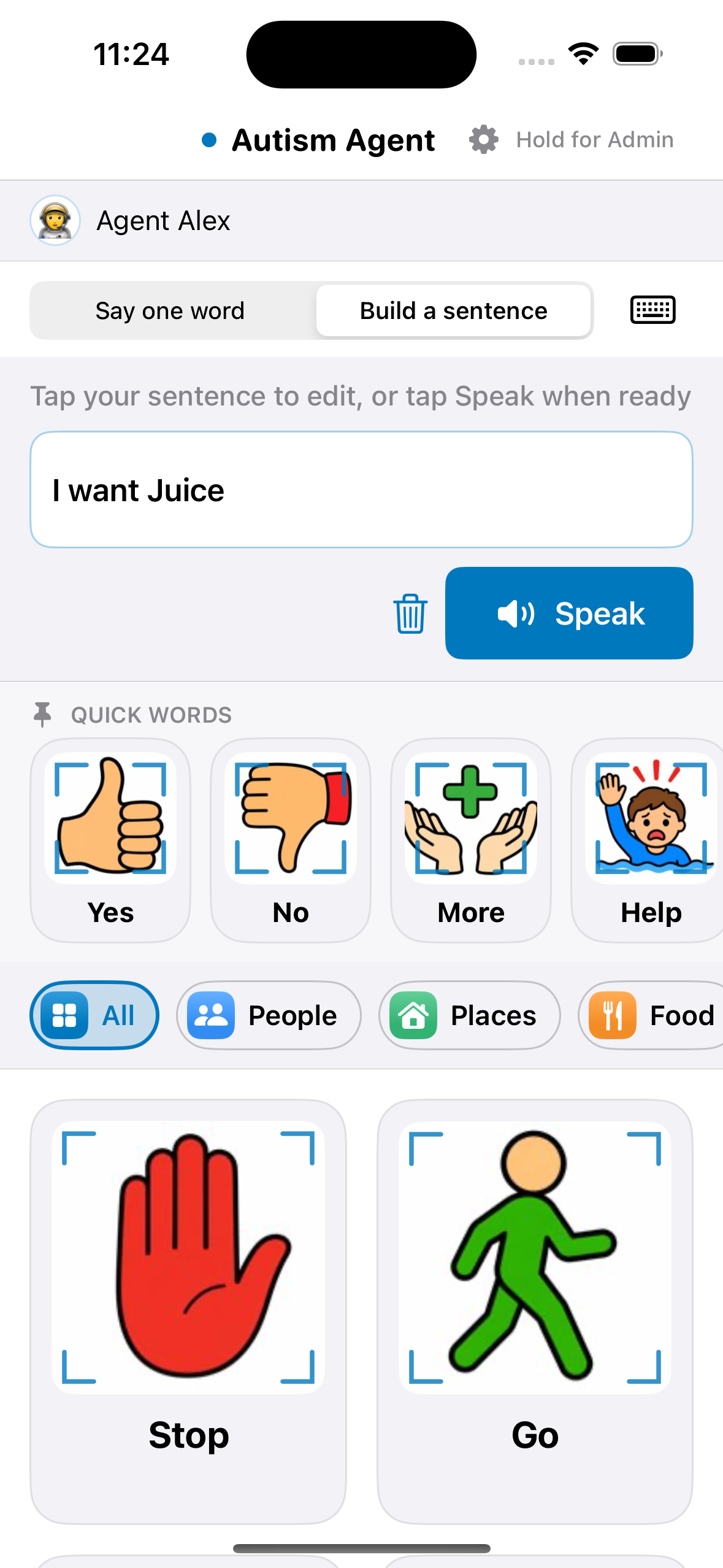
On the mode bar, choose Build a sentence (instead of Say one word).
-
Add words
Tap picture cards to add chips to the sentence bar — for example I → want → juice. Each tap adds to the message without speaking the full sentence yet.
-
Speak the sentence
When the message is ready, tap Speak. The full phrase is read aloud, then the bar clears for the next message.
-
Edit chips
Tap a chip in the sentence bar to remove or change it. Tap the bar itself to open the keyboard at that spot. Use Clear to start over — after Speak, the bar resets for the next message.
-
Mix cards and typing
In sentence mode, tap picture cards to add chips, or tap the keyboard icon to spell custom words inline. Tap the picture icon to show cards again — everything stays on one screen.
5. Keyboard and spelling
Type words that are not on the board — names, places, or anything new. The keyboard replaces the picture grid on the same screen (no popup sheet).
-
Swap to the keyboard
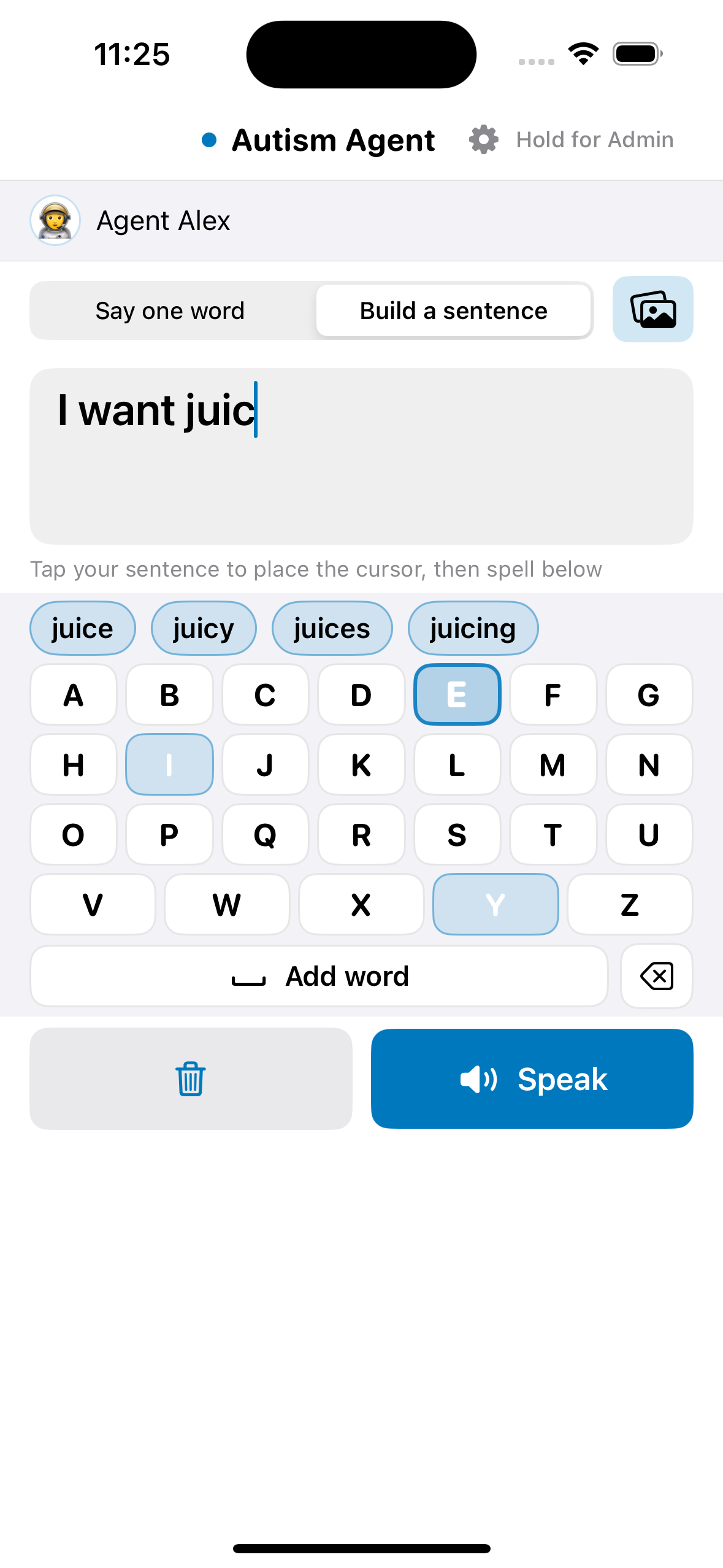
Tap the keyboard icon on the mode bar (next to Say one word / Build a sentence). Picture cards hide and the alphabet board appears in the same space. Quick Words stay available when you return to pictures.
-
Letter-by-letter spelling
Tap letters to spell. Highlighted keys show likely next letters. Word suggestions appear above the board — tap one to finish a word. Suggestions use lowercase unless you're starting a sentence with I.
-
In sentence mode
Typed words join the sentence bar at the cursor. Tap the sentence bar to move the cursor or jump into spelling. English next-word prediction suggests continuations like go, eat, or play after I want to.
-
Return to pictures
Tap the picture icon on the mode bar to show cards again. Your sentence chips stay in the bar.
6. Admin — add your photos
This is where the board becomes personal. Snap a picture or choose from your library — every card speaks the label you write.
-
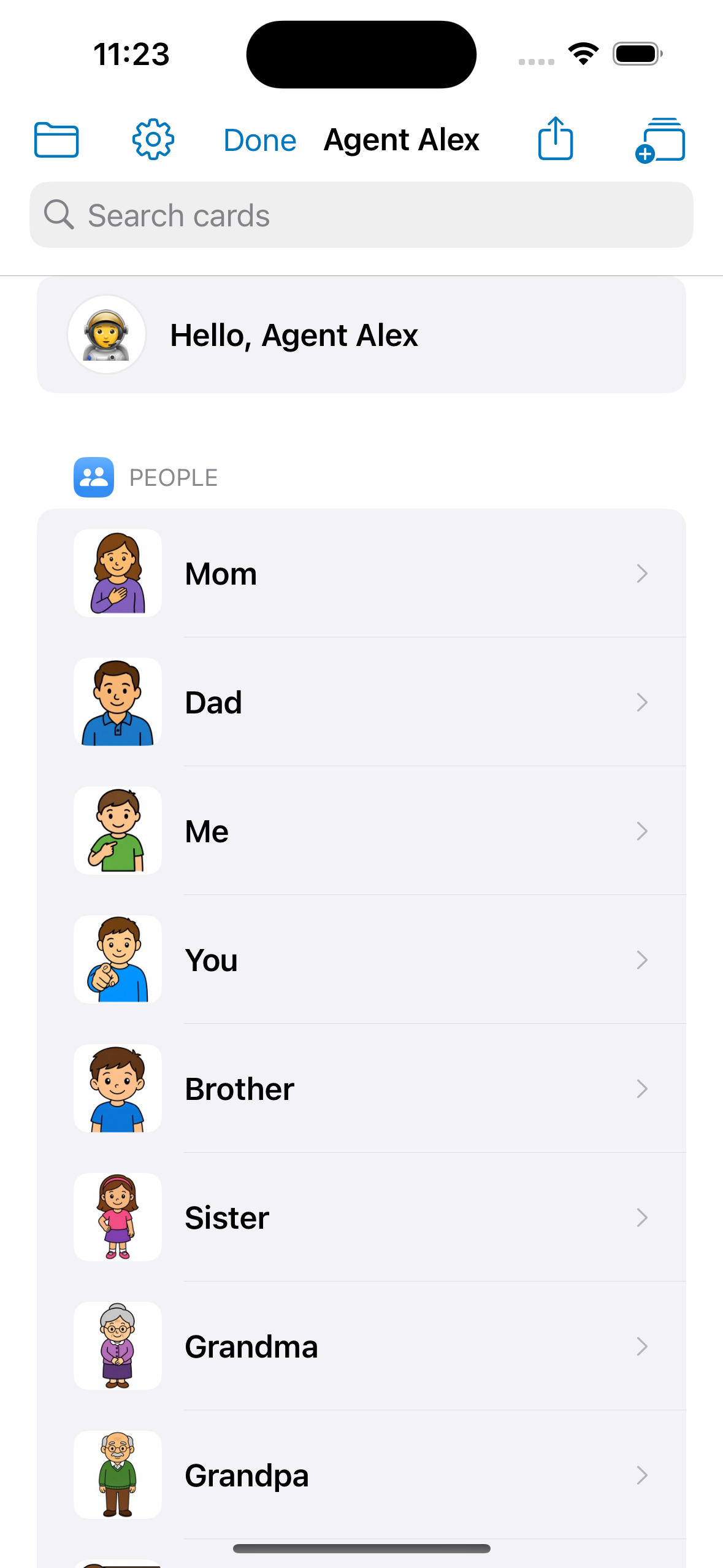
Open Admin
Tap the gear on the Speak screen, then authenticate with Face ID, Touch ID, or device passcode. Optional: Control Panel → Speak Screen → Require hold for Admin if a child shares the device.
-
Add a card from Speak or Admin
Tap the camera on Speak for a quick add, or in Admin tap Add Card (stack icon). The photo picker opens to camera first — take a picture right now — with recent photos from your library below. Enter the spoken label (what they hear when they tap) and pick a category. The card appears on the board immediately.
-
Edit or delete
In Admin, tap a card to edit its label, photo, or category. Swipe to delete cards you no longer need. On Speak, long-press a card for Edit or New card.
-
Categories
Create categories that match your child's world — school, therapists, favorite foods, daily routines.
-
Share (Plus)
With Autism Agent Plus, tap Share (separate from Add Card) to send a family invite link. Tap Manage or stop sharing to see participants or end the share.
7. Control Panel
Open Admin, then tap the sliders icon for voice, display, and device settings.
Speak Screen
By default, tap the gear or camera on Speak. Turn on Require hold for Admin or Require hold to add card if a child might tap them by accident.
Voice
Pick a system voice, speech rate, and pitch. Use Test voice before handing the device back.
Display
Adjust grid tile size, calm theme, and student-safe mode for a simpler board without agent decorations.
Behavior
Toggle speak-on-launch greeting, partner line, sentence sound effects, and sort-by-most-used.
Rebuild iCloud database
Fixes a stuck sync mirror — does not delete your cards. Fully close and reopen the app after rebuilding. Your vocabulary is saved and restored automatically.
Starter cards
Load the 128-word catalog or remove all starter cards for a blank slate (custom cards stay). Quick Words re-pin after reload.
iCloud & Plus
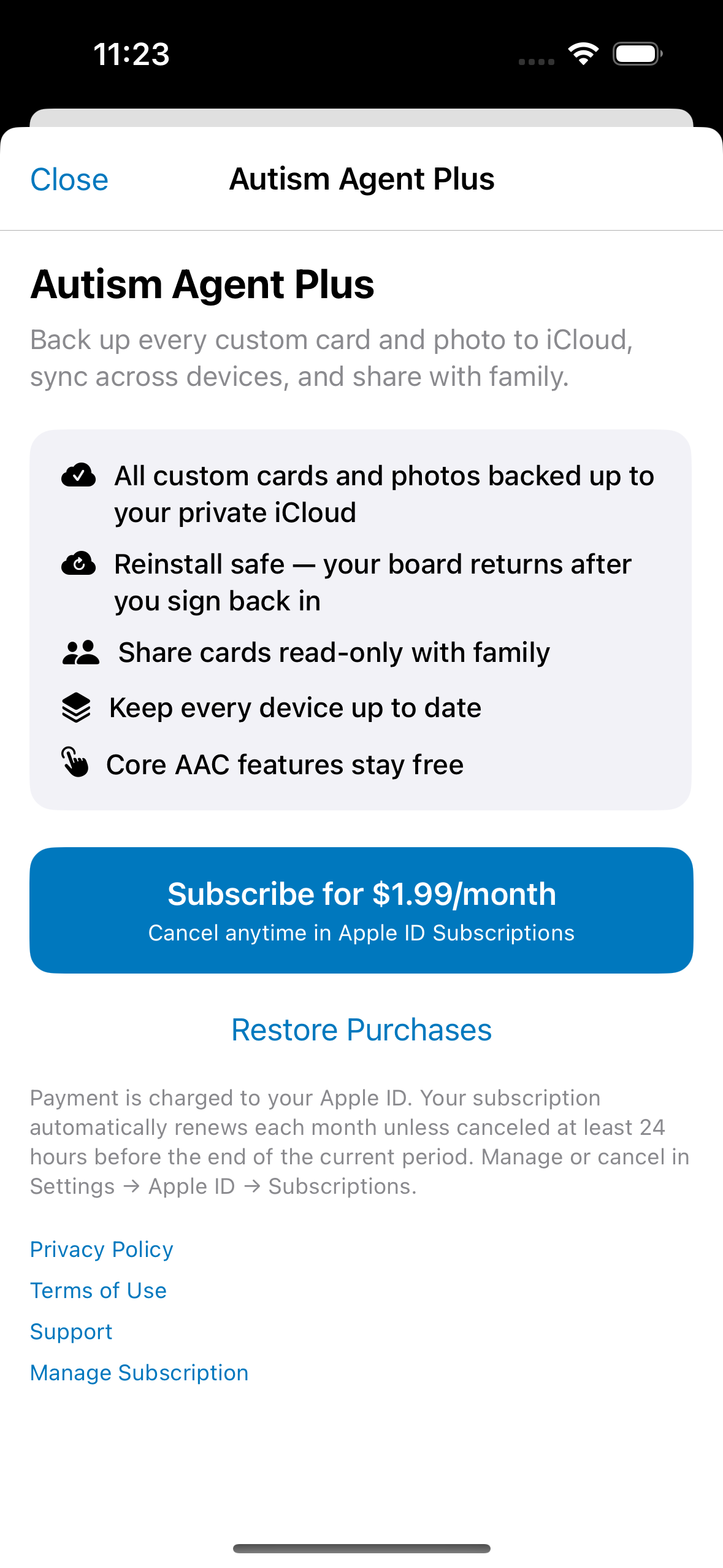
Subscribe to Autism Agent Plus for backup and sync. After subscribing, fully close and reopen the app to start iCloud sync.
8. Family sharing (Autism Agent Plus)
Plus ($4.99/month) backs up custom cards and photos to your private iCloud, syncs across your devices, and shares read-only with family on their own Apple ID.
-
Subscribe on the caregiver device
Control Panel → Autism Agent Plus. Confirm the subscription, then force-quit and reopen the app so iCloud sync starts.
-
Send the share link
Admin → Share (top-right, separate from Add Card) → send via Messages, Mail, or any app. Tap Manage or stop sharing to see participants or end access.
-
Stop and share again
If you stop sharing, the old invite link stops working. Tap Share again to create a new link — viewers must open the new invite (they do not need to delete the app).
-
Accept on another device
The family member installs Autism Agent, signs into their Apple ID, and opens the link. Cards appear read-only — they cannot edit your library.
-
New cards sync automatically
Cards you add on the caregiver phone appear on viewer devices without sending a new link.
-
When sharing ends on a viewer device
If the caregiver stops sharing or the invite expires, shared cards disappear after iCloud sync. Speak shows a Family sharing ended banner with Use my own board — starter cards load and Admin returns. The same action is in Control Panel → Shared Board.
-
After reinstall
Sign into the same Apple ID, subscribe to Plus if needed, and open a current share link if cards do not reattach automatically. See Support FAQ for rebuild steps.
9. Viewer-only device (child's phone)
-
Accept the share link
Install Autism Agent, complete the quick setup (name + avatar), then open the caregiver's invite while signed into the child's Apple ID. The device switches to viewer mode automatically — Admin and card editing are hidden.
-
Same Speak experience
Tap-to-speak, sentences, keyboard, and categories work the same — just without management tools. Student-safe mode is always on for shared boards.
-
Return to a private board
If sharing ends, tap Use my own board on the Speak banner or in Control Panel to load starter cards and restore full Admin access.
Two-device setup at a glance
Parent phone — Adds and edits cards, sends the share link, full Control Panel access.
Child phone — Opens the invite link; read-only board with no Admin.
Your iPad — Can be the caregiver device or a viewer; each device follows its own share link.
App screenshots
Click any screen to enlarge. The interactive tour on the home page uses the same screenshots.
10. Tips and troubleshooting
- Tap the gear for Admin — tap the camera to add a card. Turn on Require hold in Control Panel → Speak Screen if a child shares the device.
- Long-press a card — edit, duplicate, or pin to Quick Words without opening Admin.
- Family sharing ended? — tap Use my own board on the Speak banner to restore starter cards and Admin.
- Use real photos — faces, foods, and places the child knows beat generic pictograms for daily use.
- Student-safe mode — hides space-themed chrome for a calmer, school-friendly board.
- Quick Words after reload — reloading starter cards re-pins core words automatically.
- Keyboard swap — tap the keyboard icon on the mode bar; picture cards and keyboard share one screen (no popup).
- Rebuild iCloud — fixes sync; does not wipe your cards. Send a fresh share link after rebuilding if family sharing was active.
- Stop sharing — old invite links expire; Share again for a new link.
- Plus lapsed — your board stays on the device; resubscribe to sync again.
- Need help? — see the Support FAQ or email support@katoomi.com.